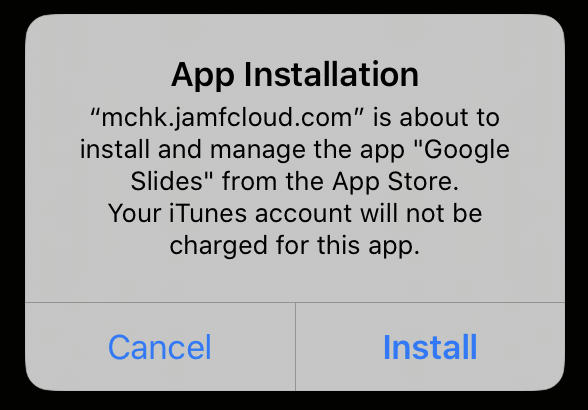
1. Please open the Safari App on your iPad
(other browsers and Apps are not supported)
2. Browse to Malvern College HK's Jamf website:
https://mchk.jamfcloud.com/enroll
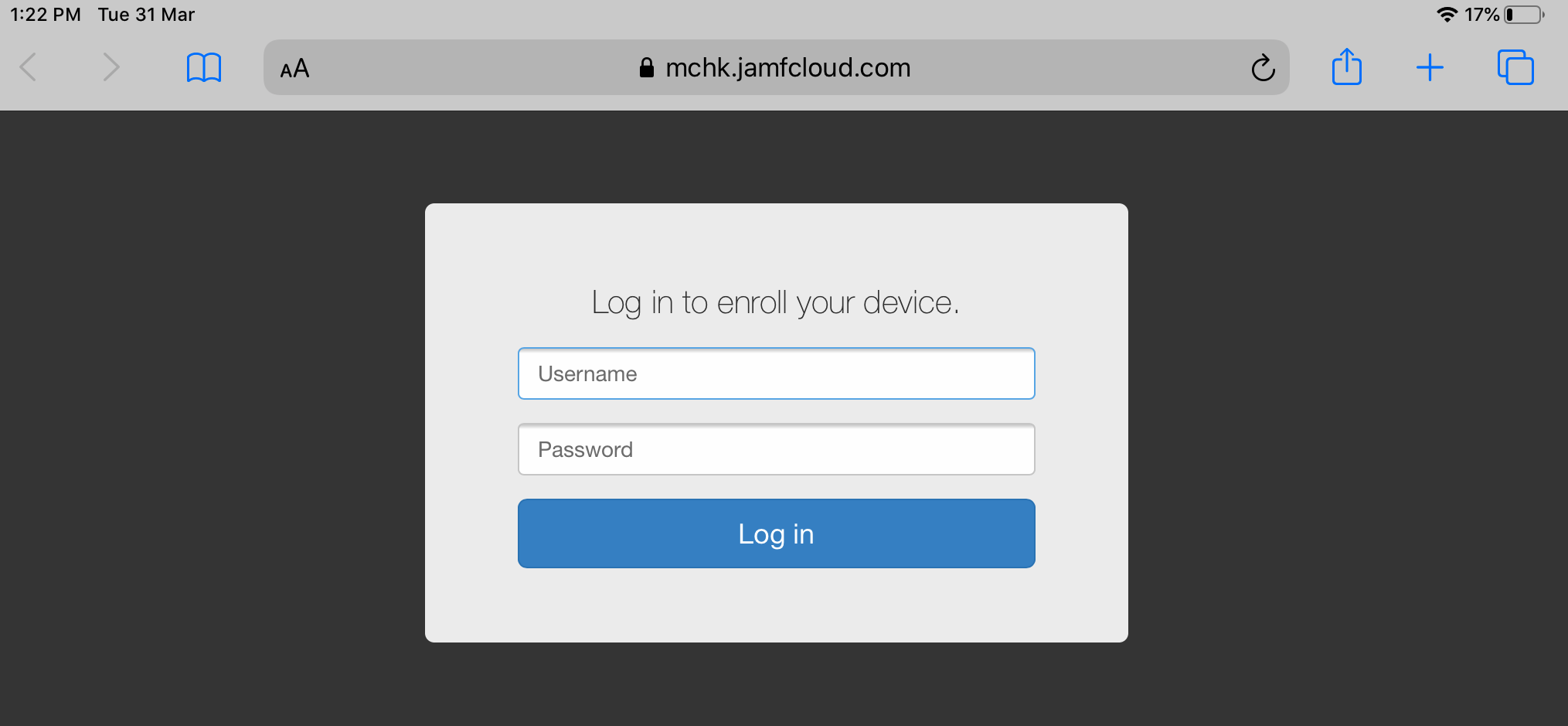
3. Enter Username and Password (this will be provided via an email from our IT staff)
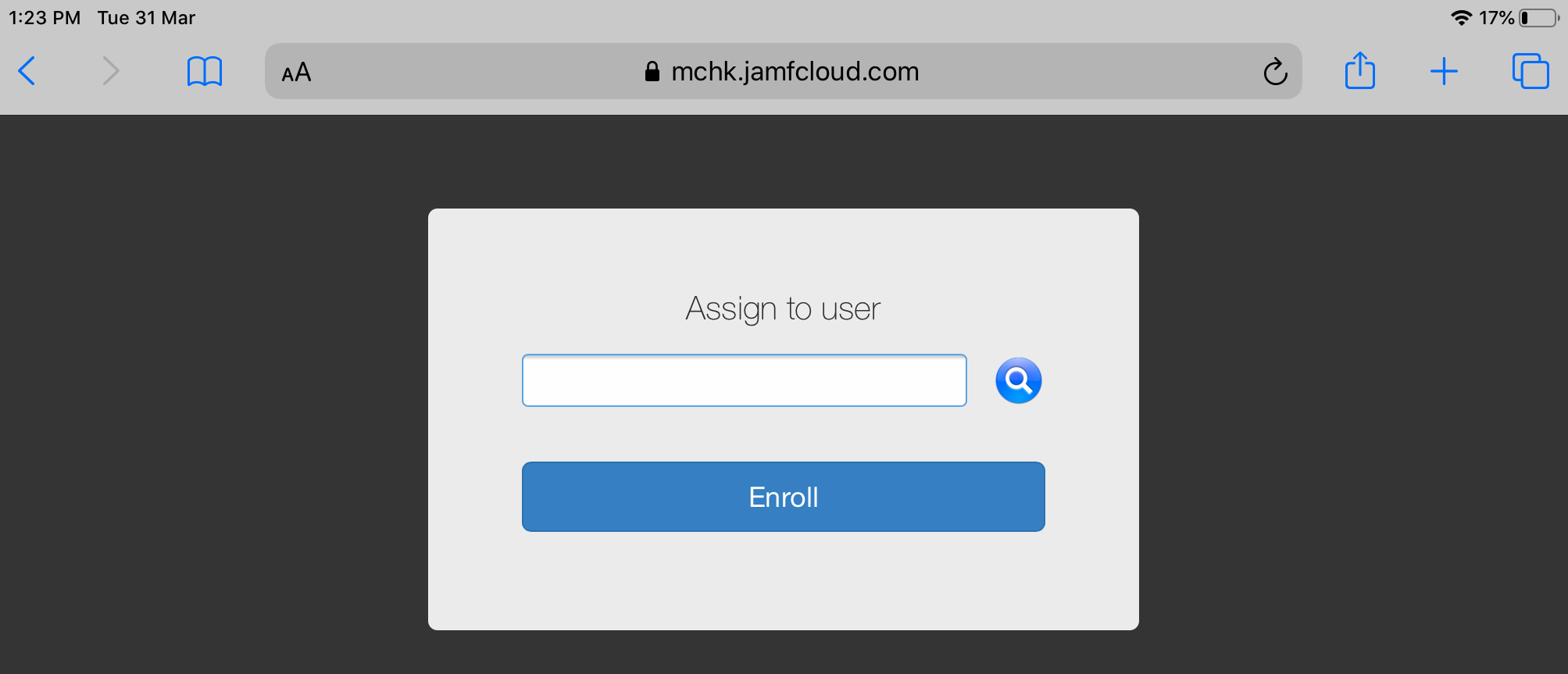
4. Click "Enroll"
(you do not have to enter a user in "Assign to user")
Next , as part of the iPad enrollment process, you need to install 2 profiles:
- CA Certificate Profile for MCHK
- MDM Profile for MCHK.
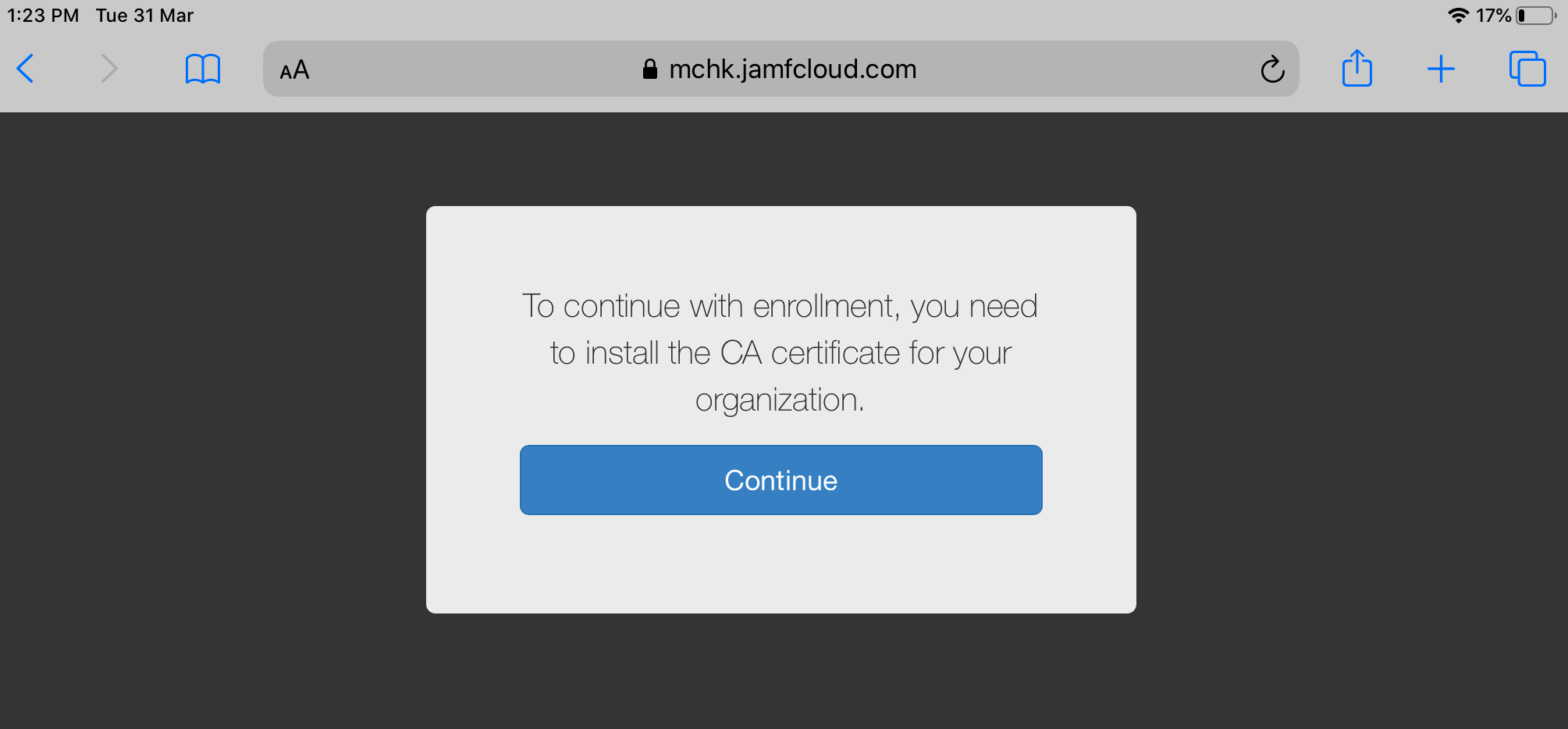
5. Click Continue - To install the CA Certificate profile for MCHK.
(you need to install the CA certificate for Malvern College HK)
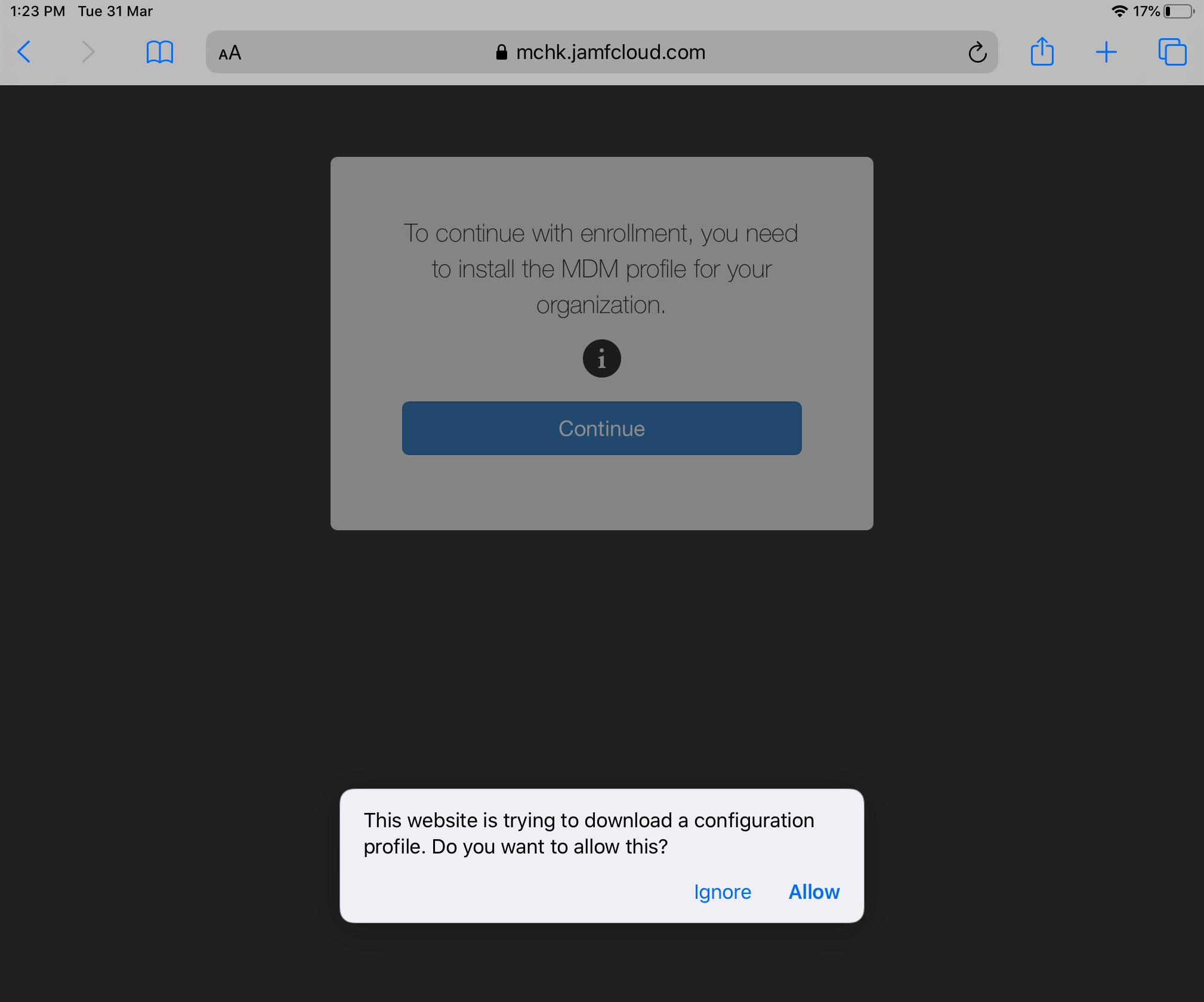
6. Click Allow
7. Click Continue - to install the MDM profile for MCHK.
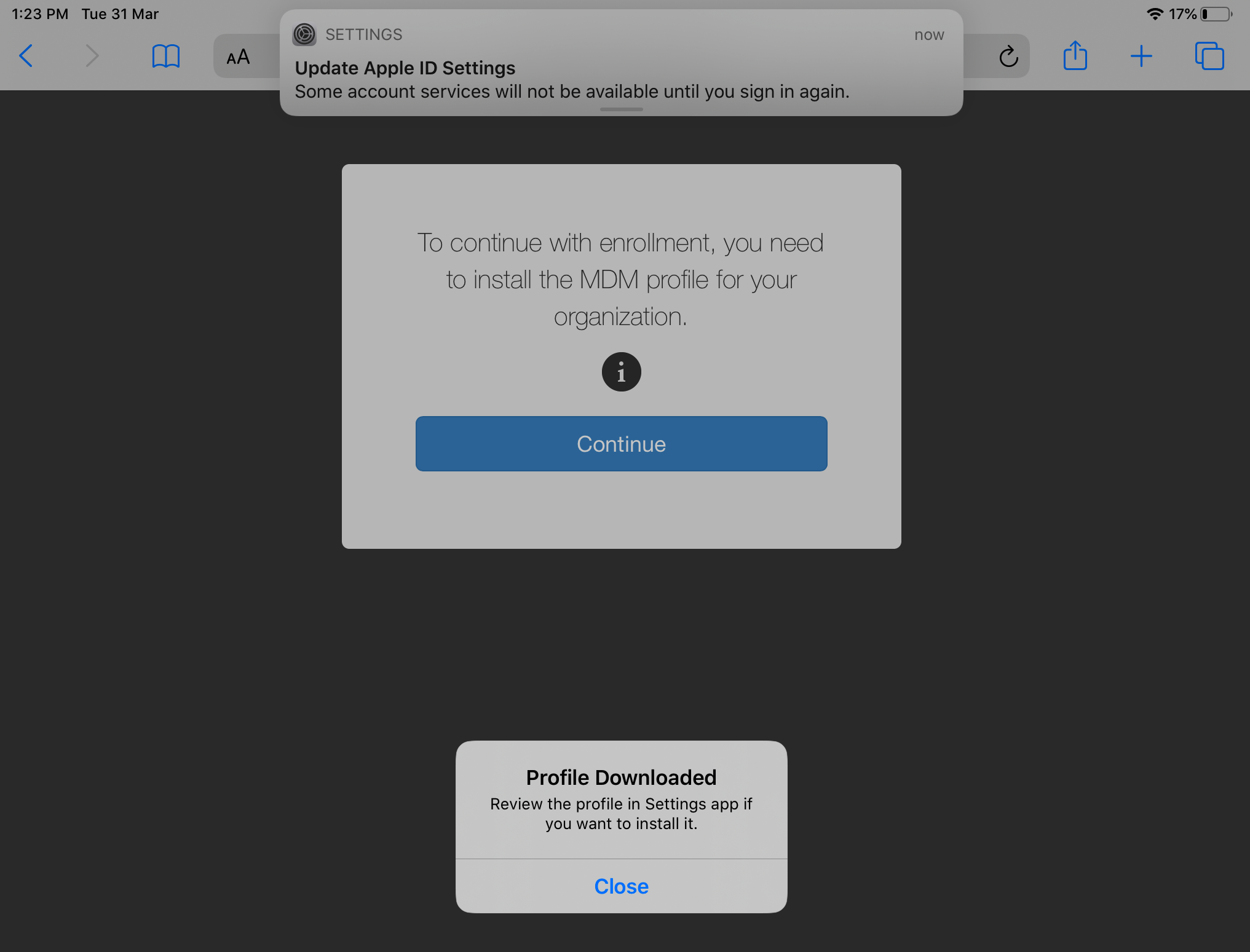
Profile Downloaded message appears.
This message instructs you to Review and install the MDM profile using the Settings app.
8. Click Allow
8. Click Close
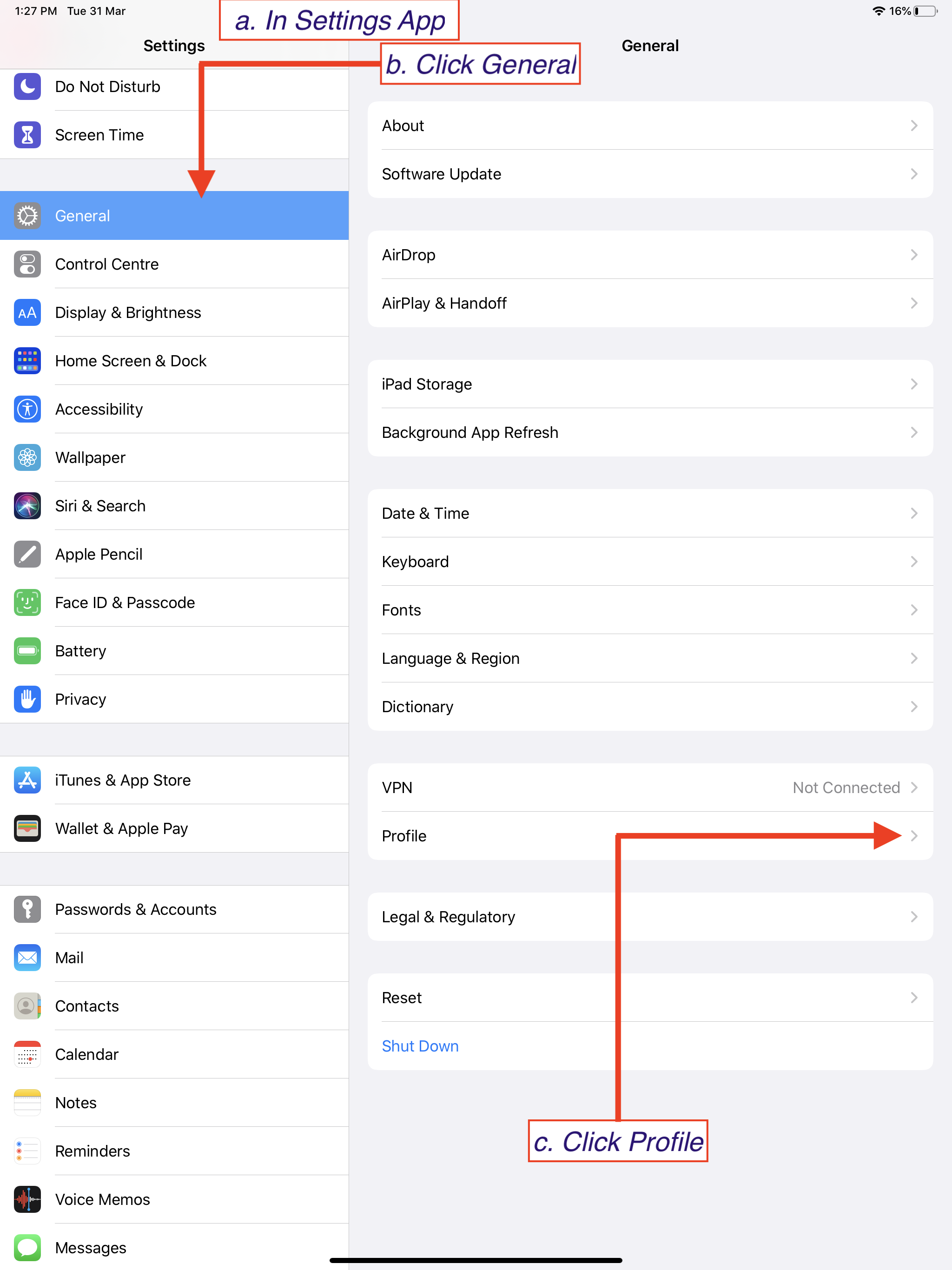
8. Install the MDM profile using the Settings app:
a) Open the Settings app on your iPad
b) Click General
c) Click Profile
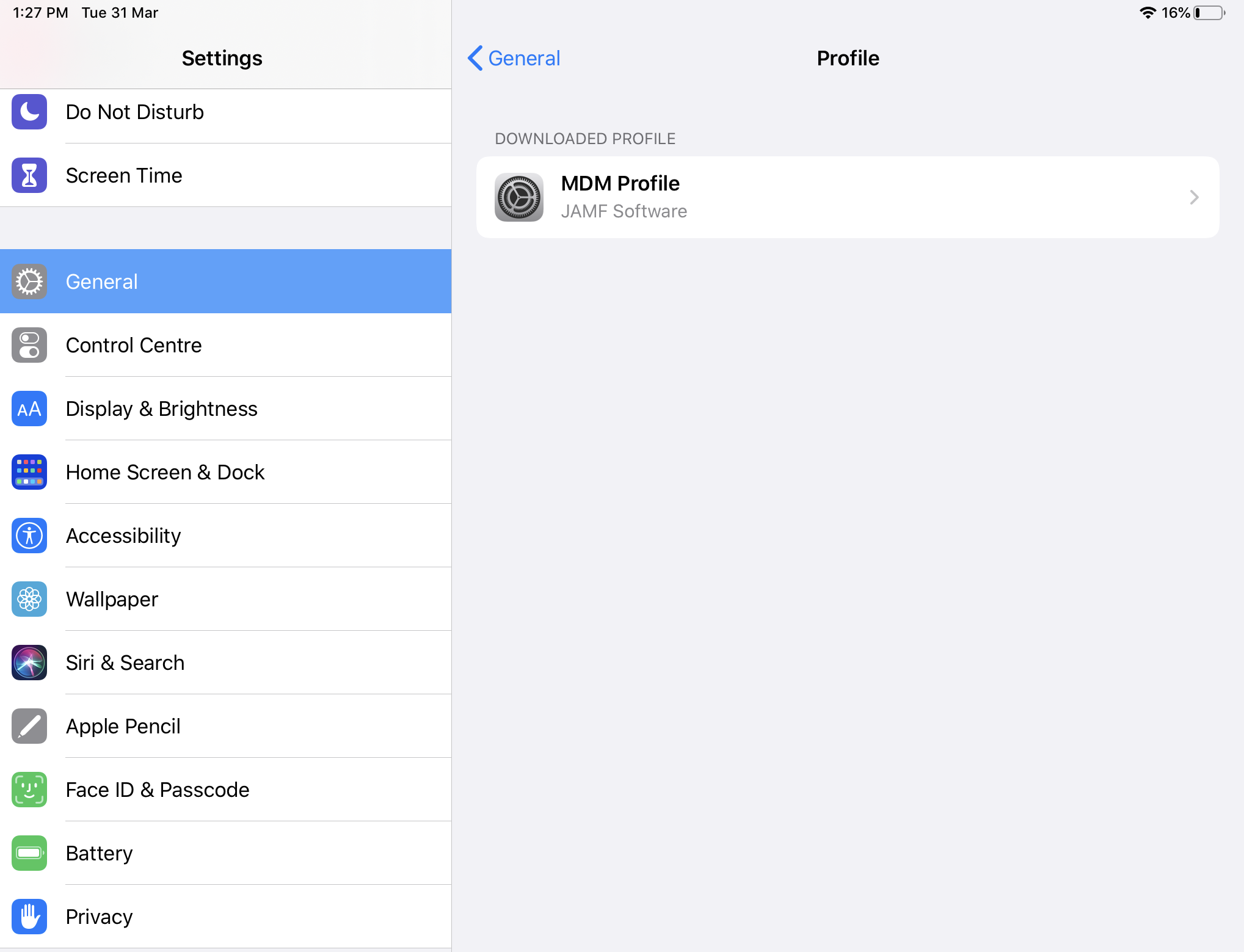
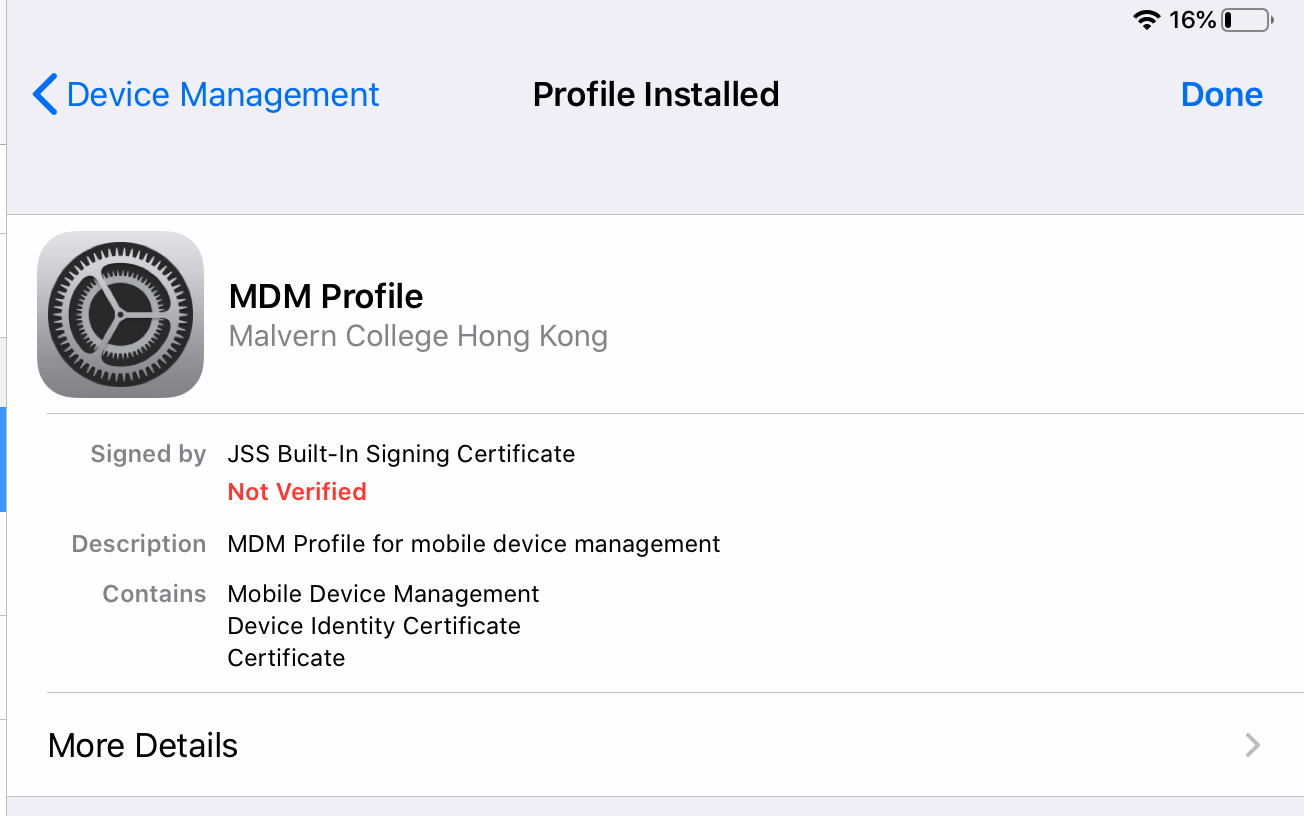
9. Click MDM profile.
10. Click Install
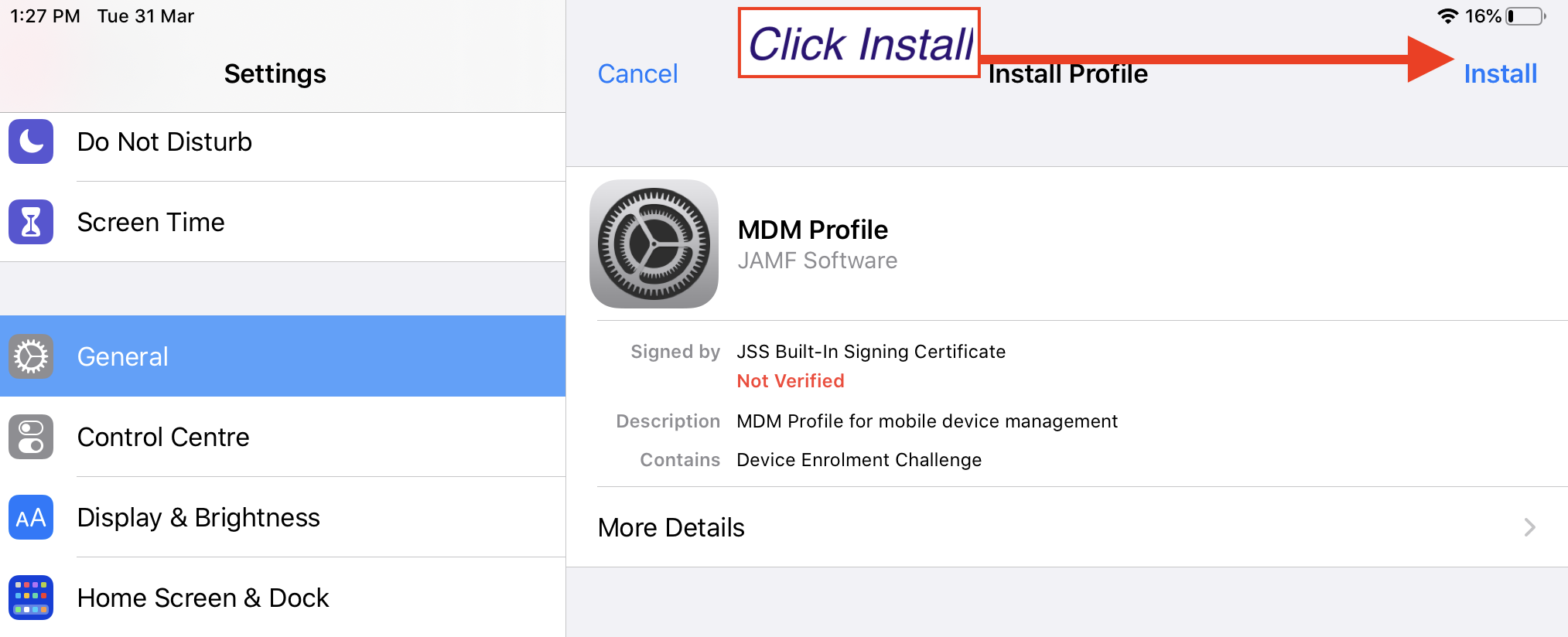
10. Click Install (again)
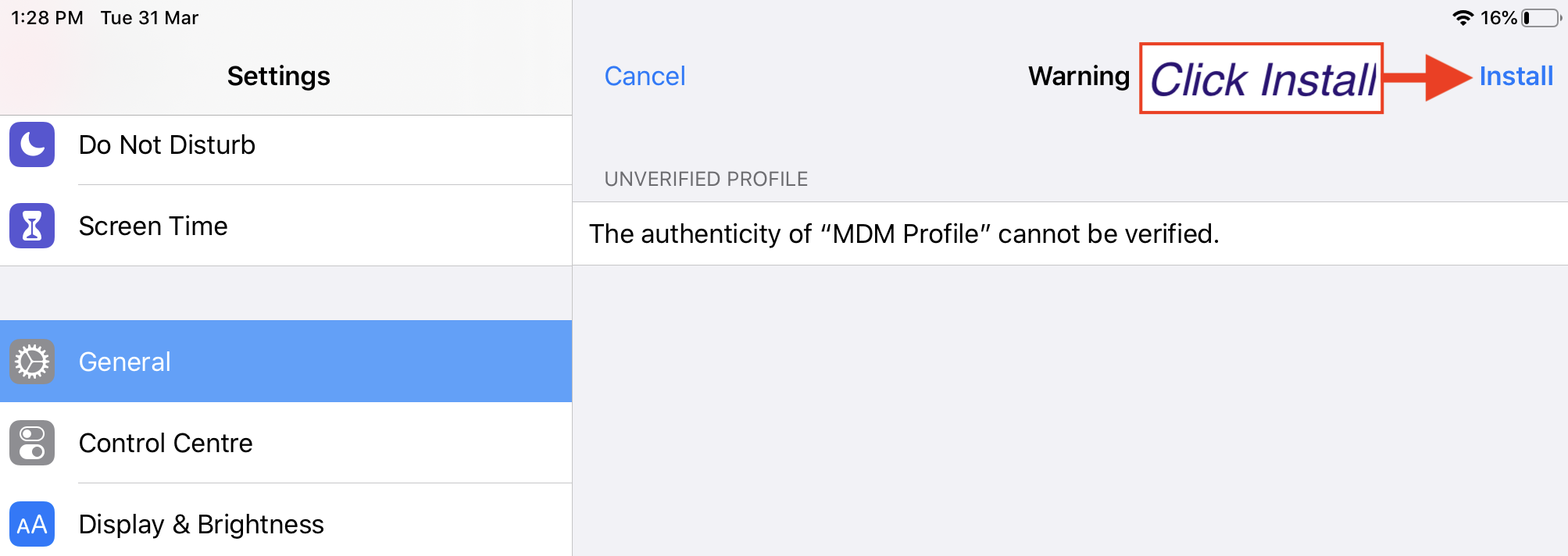
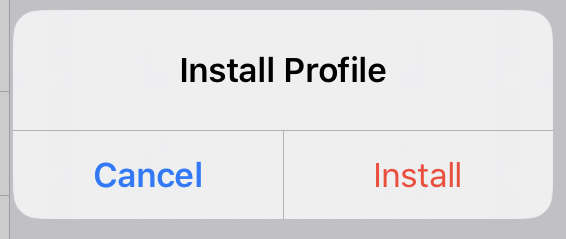
11. Click Install Profile
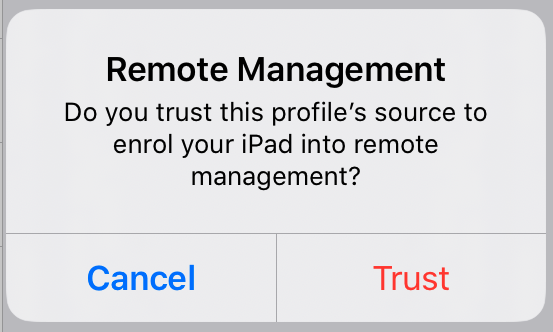
12. Click Trust
13. Click Done
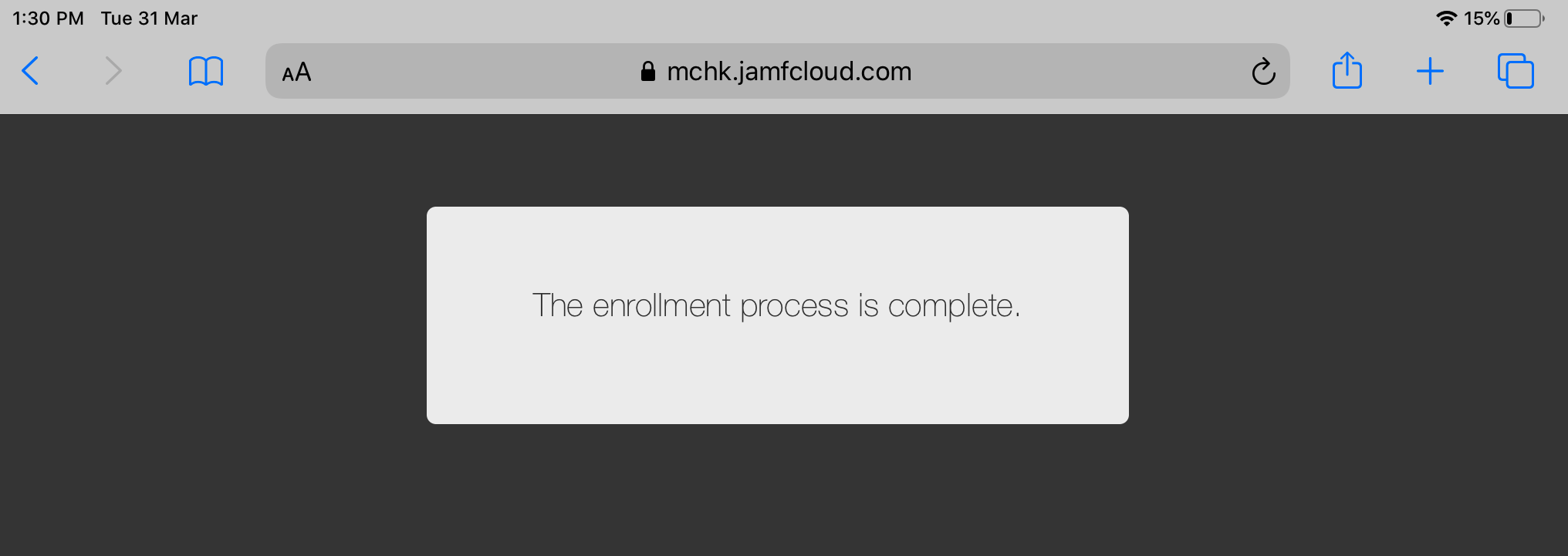
14. The Jamf website will then show that the enrolment process is complete.
15. Please also remember to click "Install" for each app deployed to your iPad through the MDM profile.
Unfortunately, you will need to manually click Install for each app.
This only happens the first time you install the profile.
(an example of the message for each App shown below)