
We have now enabled two-factor authentication for access to iSams from outside the school network.
Here's a Screencast on how to login to iSams using 2FA 2-factor-authentication
Here are the steps for you to set up 2FA:
Please download the TOTP app if you have not already done so
TOTP Authenticator app for Android.
TOTP Authenticator app for iPhone.
1. Login to Chrome with you MCHK login details
2. Go to the 9 dot icon and select iSAMS
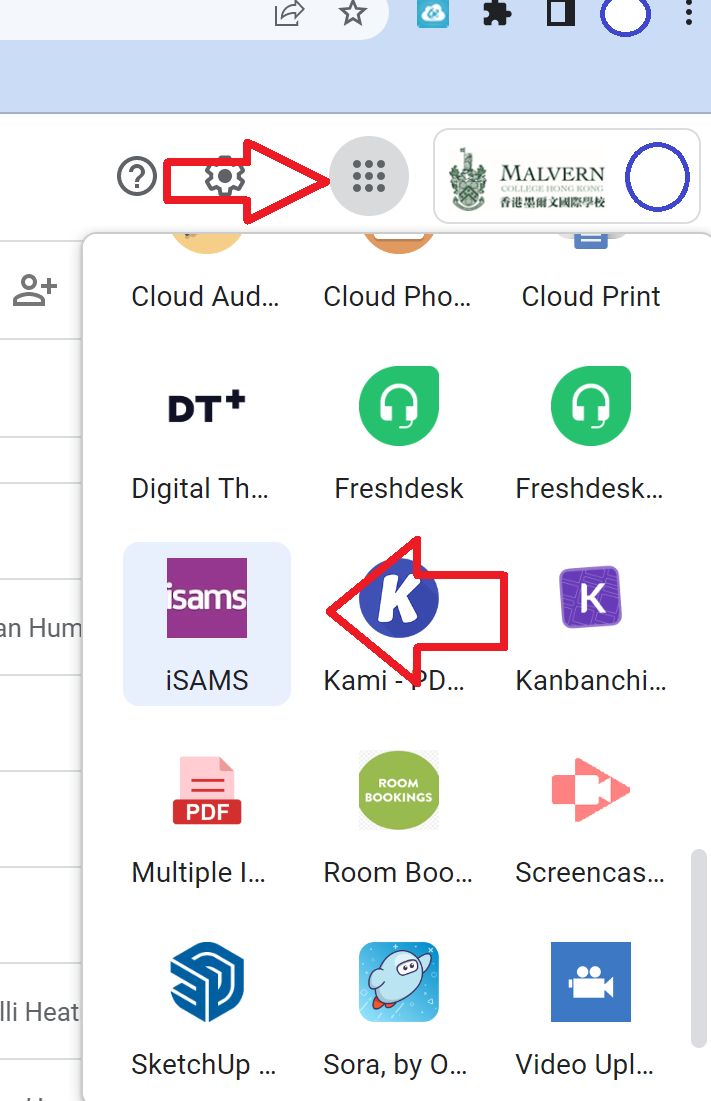
Or you can browse to the iSams school website here:
https://malverncollegehk.
3. Click on “Sign in via Google G-Suite”

4. you will be prompted to enter an email verification code

5. The verification code email is sent to the user’s email address (may fall in Junk mail)
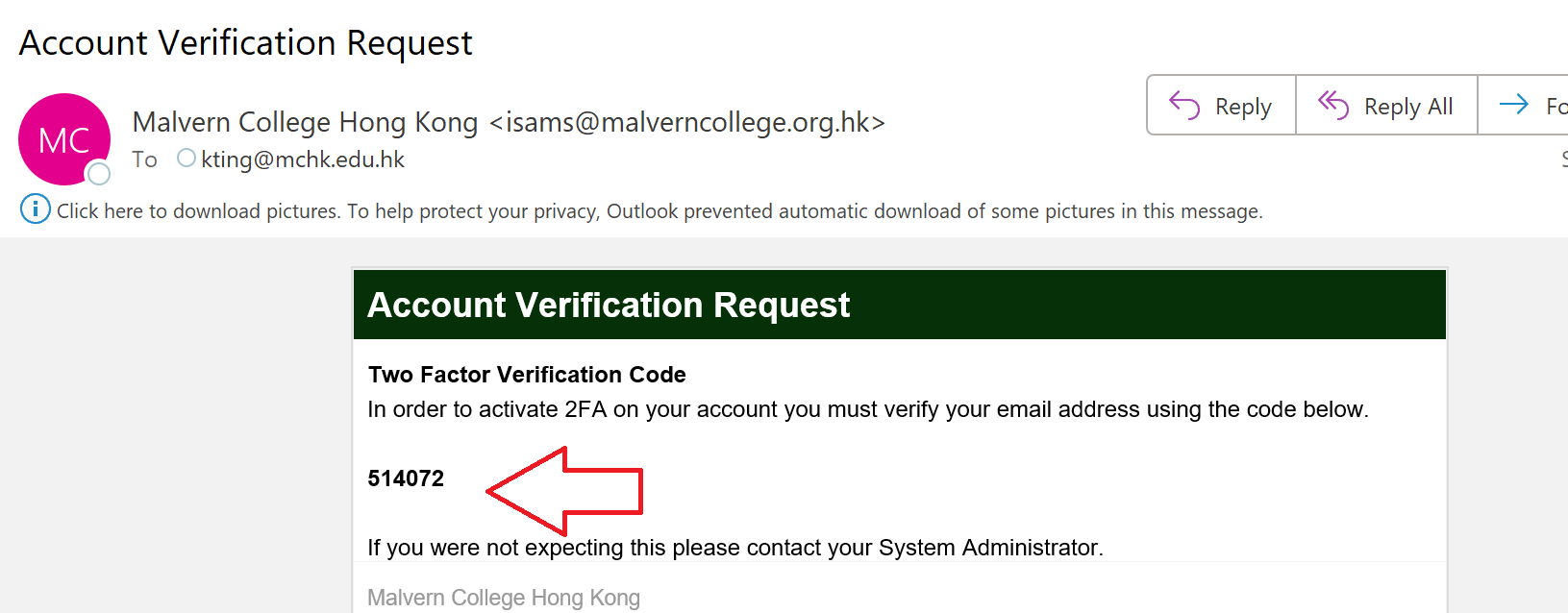
6. Enter the verification code (point 4)
7. Download the TOTP app through the following links (if you have not already done so):
Android - https://play.google.com/store/apps/details?id=com.authenticator.authservice2&hl=en&gl=US
iPhone - https://apps.apple.com/us/app/totp-authenticator-fast-2fa/id1404230533
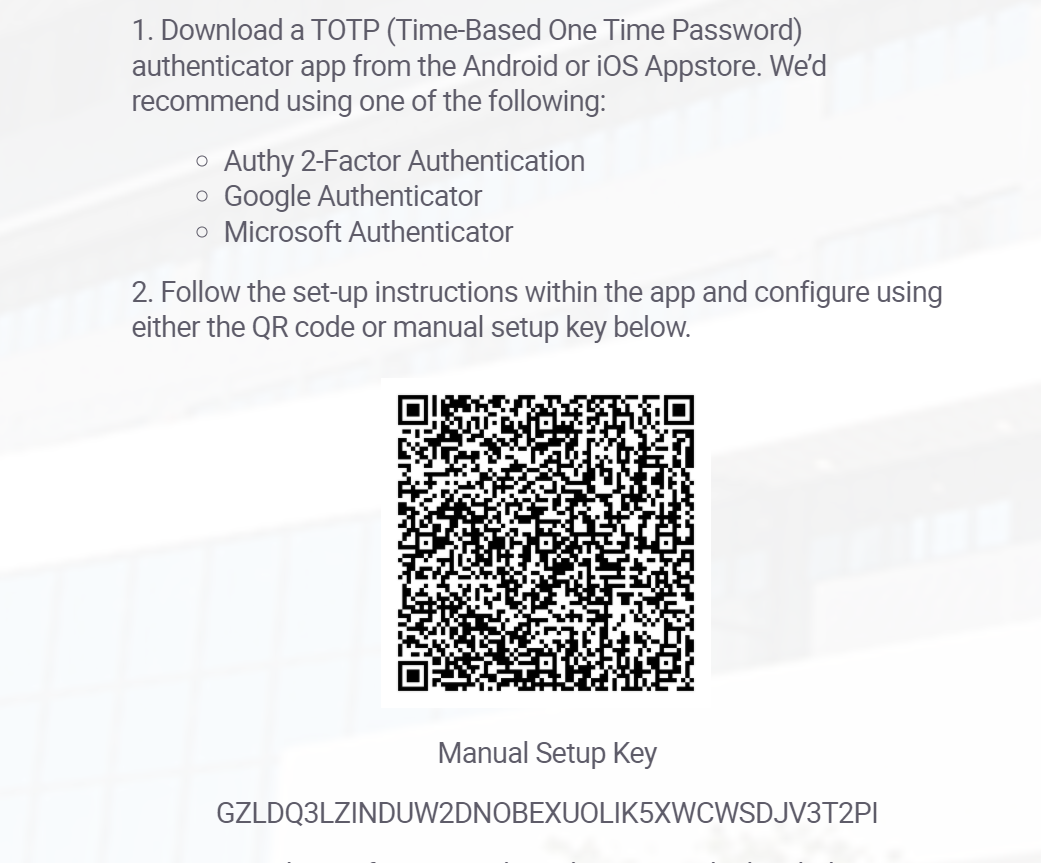
8. in the TOTP Authenticator app, Press the green Plus + icon (bottom right corner)

9. Then Press the "Scan QR code" option (within the TOTP authenticator app)
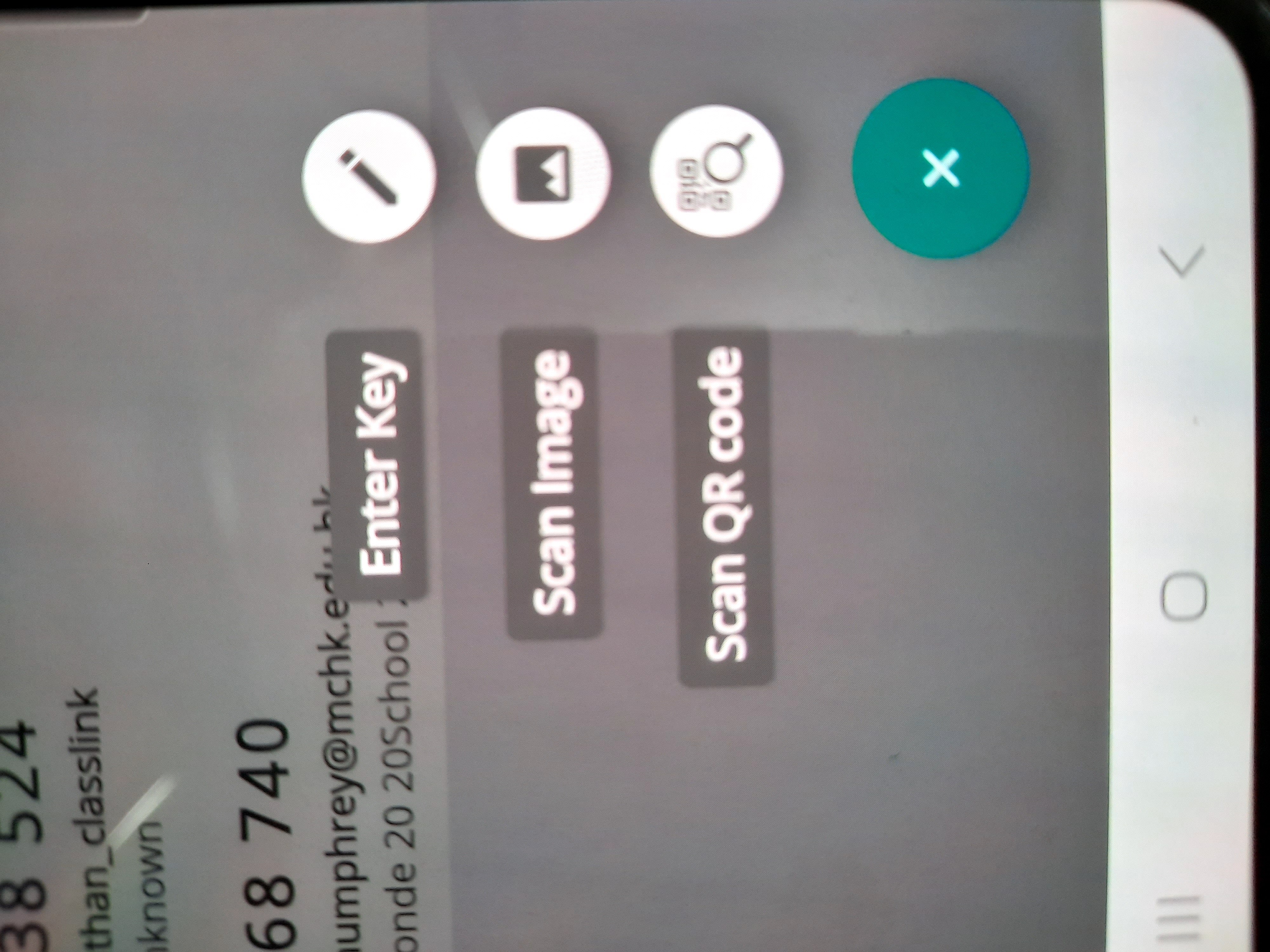
10. After scanning the QR Code (first time only) you will see the following:
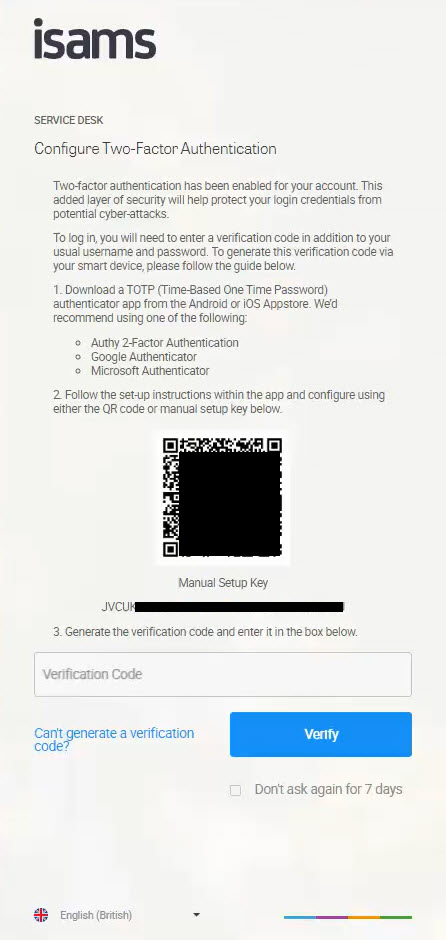
After registering with your smartphone, you just need to open the TOTP authenticator app on your smartphone to retrieve the 2FA Verification Code.
11. During your regular login after registering, the Verification Code screen will be displayed in the web browser as shown below:
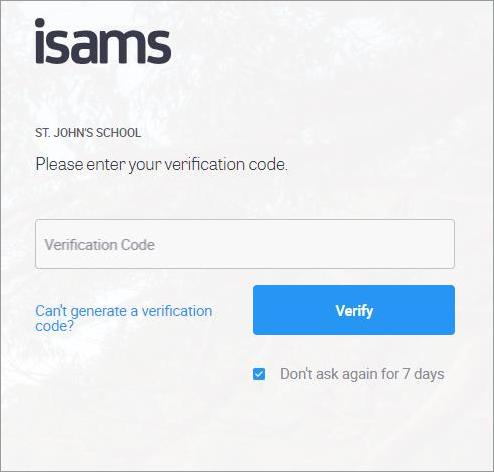
12. Open TOTP Authenticator app on your smartphone to retrieve a 6 digit code - the code specifically for iSams.
13. Enter the 6 digit "Verification Code" in the textbox shown above.
14. Tick the box "Don't ask again for 7 days"
- You will not be required to enter another two-factor verification code for 7 days - when using the same browser and same machine.
- Do not do this if you are using a shared computer.
15. Click the "Verify" button.
You will then be logged into iSams using two-factor-authentication.