
The aptly-named formLimiter add-on brings plenty of customization features to the humble 'Accepting responses' switch of Google Forms. With it, you can limit the number of responses and specify the date & time after which the form will stop accepting responses. Nifty, right?
Similar to other add-ons, installing formLimiter is simple. Once you open a form, tap on the three-dot button at the upper-right corner and select Add-ons which will open the window for Add-ons.
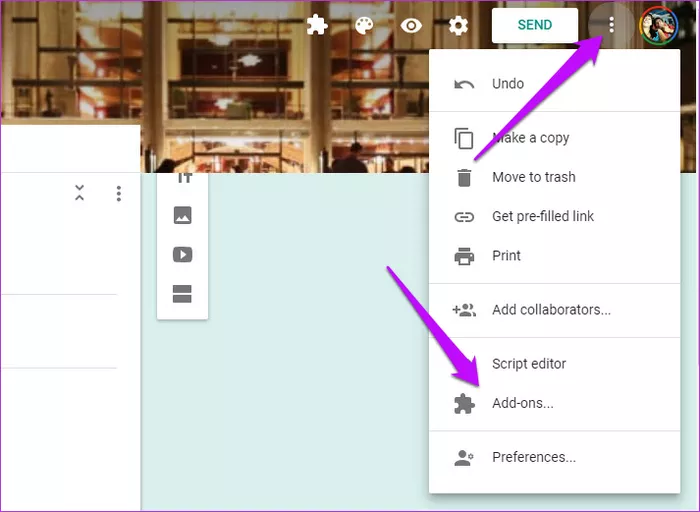
Now, search for Form Limiter, click on the Plus button, and give the necessary permission.
To limit responses, create your form, click on the Add-ons button and select fromLimiter. Next, pick the limit type.
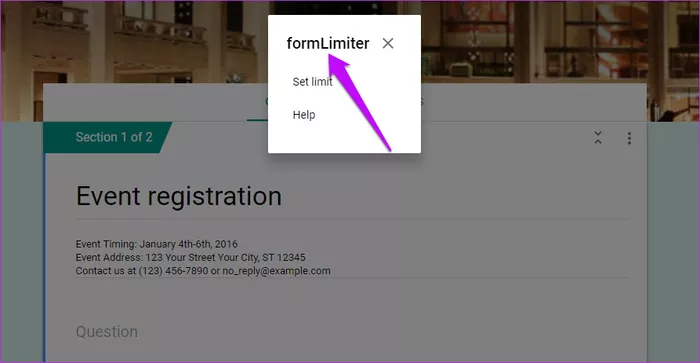
If you want to stop accepting responses after a certain time, the date and time is the option to go with. Else, select the second one.
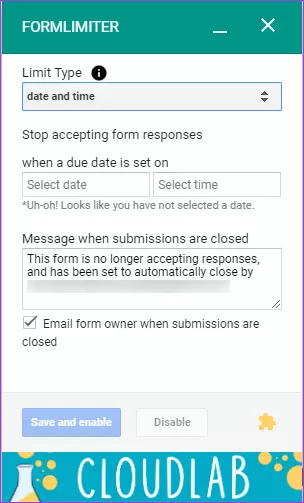 | 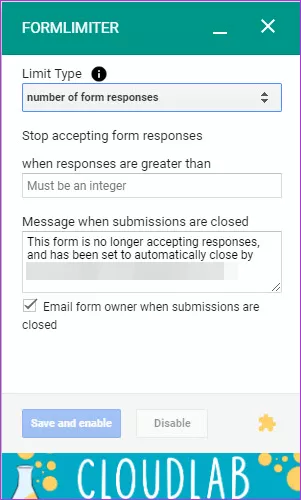 |
Next, add the number of days (or date & time), add the message and submit the form. At the same time, do check the email option.
That is a simple hack which will let you know once the limit has been reached, thus saving you from wasting time on checking up on responses.
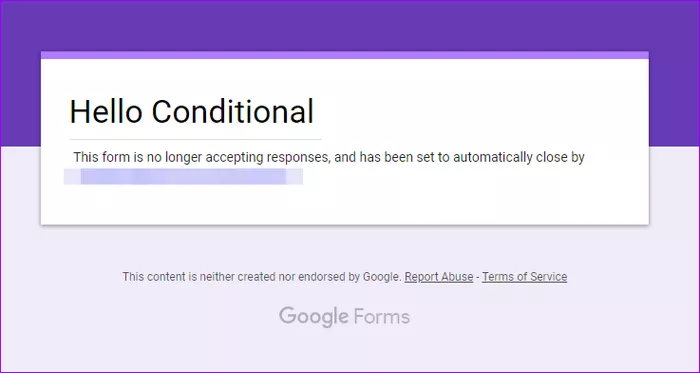
Once the form has crossed the limit, users will see an automatic response such as the one below.
The best thing about formLimiter is that it doesn’t need any separate log-in. It’s simple, easy to use and you can easily switch it off when not required.