
Sometimes Google-based websites will conflict with the existing personal Google account login that you have on your smartphone.
This is a common problem when browsing protected website links on our school website.
These include:
- Google Sites - such as Malvern View
- Google Forms
Here are some solutions to try:
1. Open the website link in a new Google Chrome browser.
- Please open a Google Chrome browser
- login using the MCHK parent Google account and password.
- and then go back to your email, and copy the link
- and then paste the link in the Google Chrome browser.
Sometimes manually logging into the browser ensures that you have the correct parent login.
2. Please try to clear your browser cache in Google Chrome on your smartphone
Clear cache and cookies chrome for android
Clear cache and cookies chrome for ios
How to clear your web browser cache:
https://mchk.freshdesk.com/support/solutions/articles/47001163820-how-to-clear-your-web-browser-cache-
3. Try to open a "New Incognito" window in Google Chrome
If you still have trouble with your login here is another suggestion that may help.
If you are using Chrome, please try using a New Incognito Window to login as shown below:
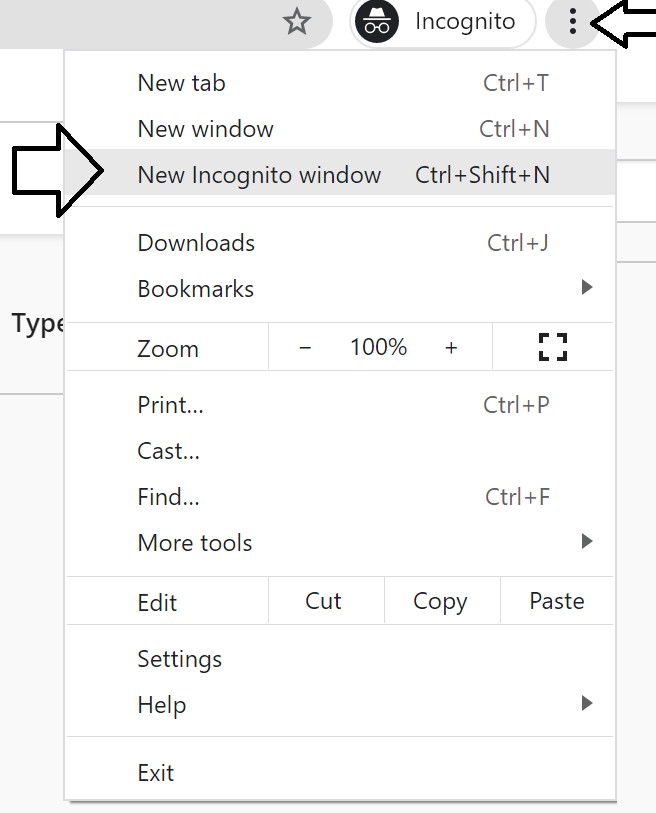
How to open a New Incognito window on smartphones:
Here are the steps to open a New Incognito window on an Android smartphone (such as Samsung)
Here is the official Google guide for opening a New Incognito window on Android
Here are the steps to open a New Incognito window on an iPhone
I hope this additional suggestion helps with your login problems with MCHK school websites and forms.
If you need any further assistance, please don’t hesitate to contact ICT Services on ictservices@mchk.edu.hk.
Best Regards,
ICT Services
Email: ictservices@mchk.edu.hk
Website: https://mchk.freshdesk.com