
To take a register, follow the steps below:
1. Either:
Open the Registration Manager module and click the School Register tab.
or
Open the School Registrations wizard heading in the wizard bar on the right of your desktop and select the "Take a Registration" wizard. This is available to all iSAMS users including those with no access to the Registration module.
2. Use the fields displayed to select the registration period you want to work with:

3. Click Go to displayed your selected register:
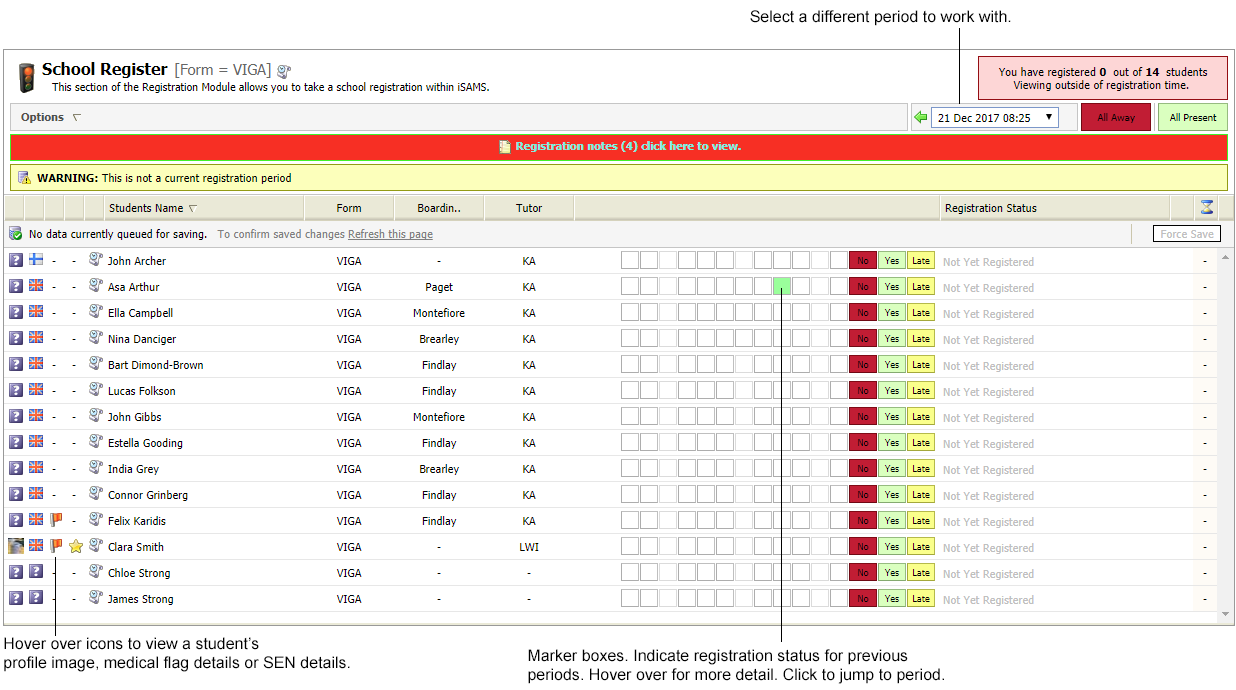
4. Click Options in the top left of the screen to apply filters to the register. This helps you to only view information relevant to you:
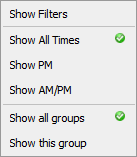
5. Select the options that you want to apply:
Option | Click on an Option to display... |
Show Filters | The filters used to select the register shown. Click Hide Filters to hide the filters, reducing the information shown on your screen. |
Show All Times | Registration marker boxes for all registration periods. |
Show AM | Registration marker boxes for AM registration periods only. |
Show PM | Registration marker boxes for PM registration periods only. |
Show AM/PM | Registration marker boxes for both AM and PM registration periods. |
Show Other | Only display registration marker boxes for non-statutory registration periods. |
Show all groups | Registration marker boxes for all groups the students are registered in. |
Show this group | Only display registration marker boxes for the registration group selected. |
6. Click the "Registration notes" bar to display registration notes to be delivered to students:

These are messages for one or more students in a registration, such as reminding students of a sports squad session.
7. Click in the column headers in the header bar to change the order of the register displayed as required:

8. Work your way down the register, marking student attendance.
Either:
a. Use the Yes/No marker buttons to indicate a student's registration status:

b. Use the drop down list to record the student's lateness, if your school uses this function:

or
a. Select All Away or All Present from the quick registration buttons and confirm Yes when prompted:

b. If you have already registered some pupils, you will be asked to Set All pupils or only Set Un-registered pupils.
9. Add an absence/presence reason from the drop down list, if your school uses these:

The reasons listed are set up in the "Configuration tab".
10. Click "green plus icon" to add a note against the student's registration status, this is optional.
Notes can be viewed by anyone with access to the register. A note only displays in the register it has been added to. Use this function to communicate to other users, for example the reason why a student is late for registration. This is different to a "Registration Note".
11. Click "greeen arrow through door icon" to record that a student is leaving the registration period early, if applicable.
12. Click "ALERT" icon to send a Registration Alert, this is optional. A message is sent to a preselected list of recipients alerting them of a student's absence. Registration Alerts are based on templates held in the module and can be sent via e-mail or SMS. Use this function within your school to instantly inform users of student absence. This information can then be passed onto parents or other interested parties, if required.
13. Click Force Save if iSAMS has not saved the register automatically.
Students listed on the register are highlighted different colours to reflect their registration status:
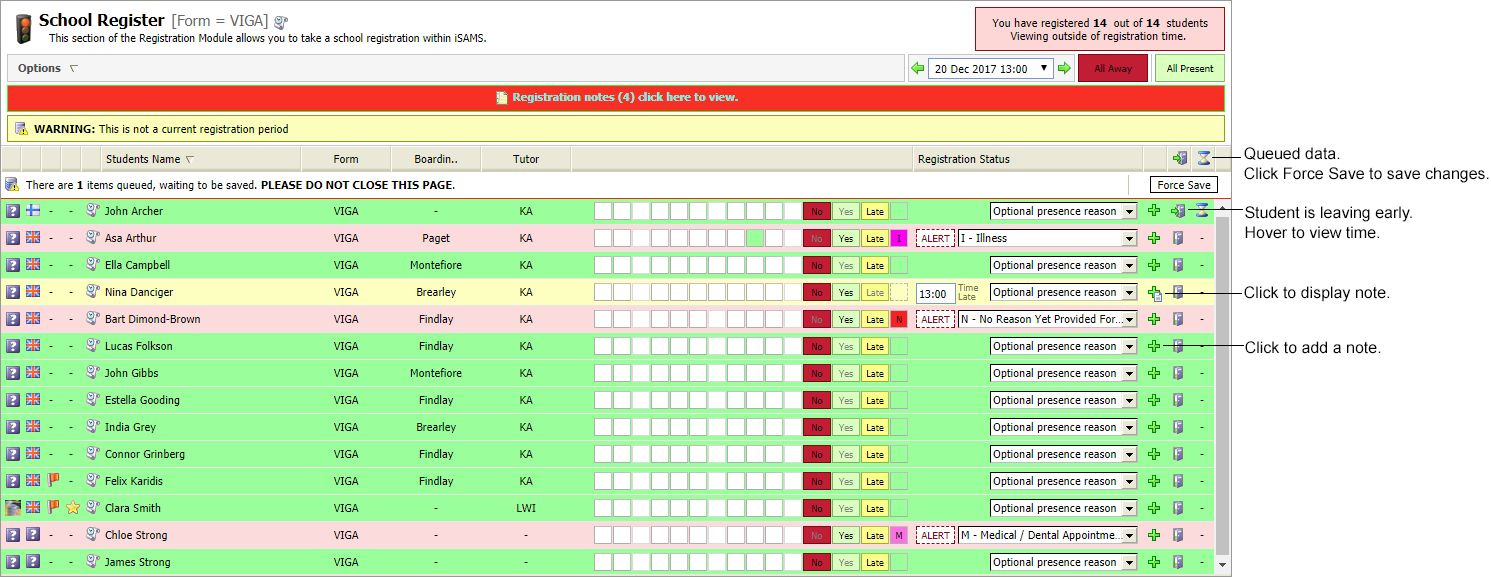
The default colours are displayed in the example shown:
Present = green.
Absent = pink.
Late = yellow.
Absent via the Out of School tab = purple.
14. Based on your "Notification Settings", notifications will be sent out via the iParent, iStudent and iTeacher Apps. The appropriate push notification settings must also be enabled in the "Mobile & Tablet Manager" module for notifications to work as expected.