
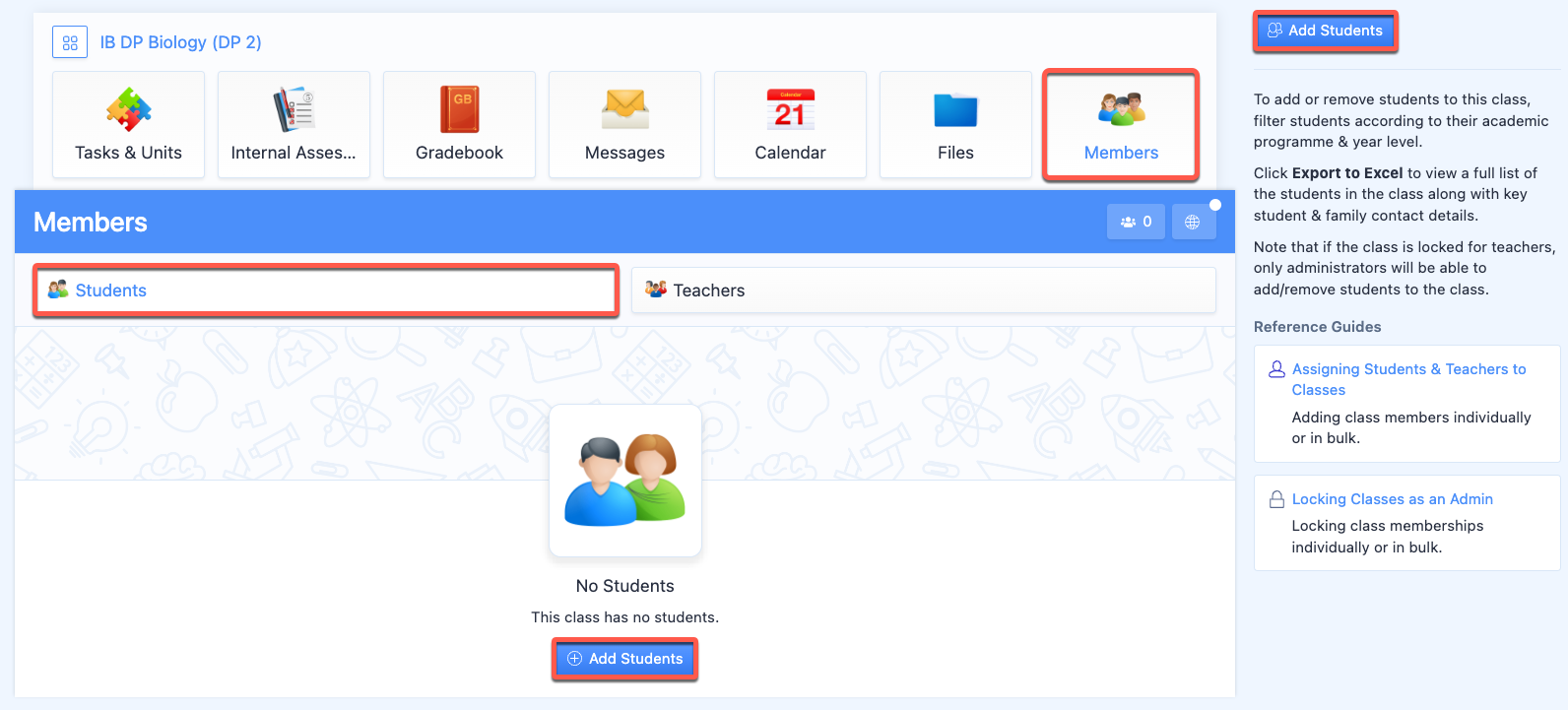
After creating classes, teachers or administrators can add students to each class by clicking Add students in the Members > Students tab.
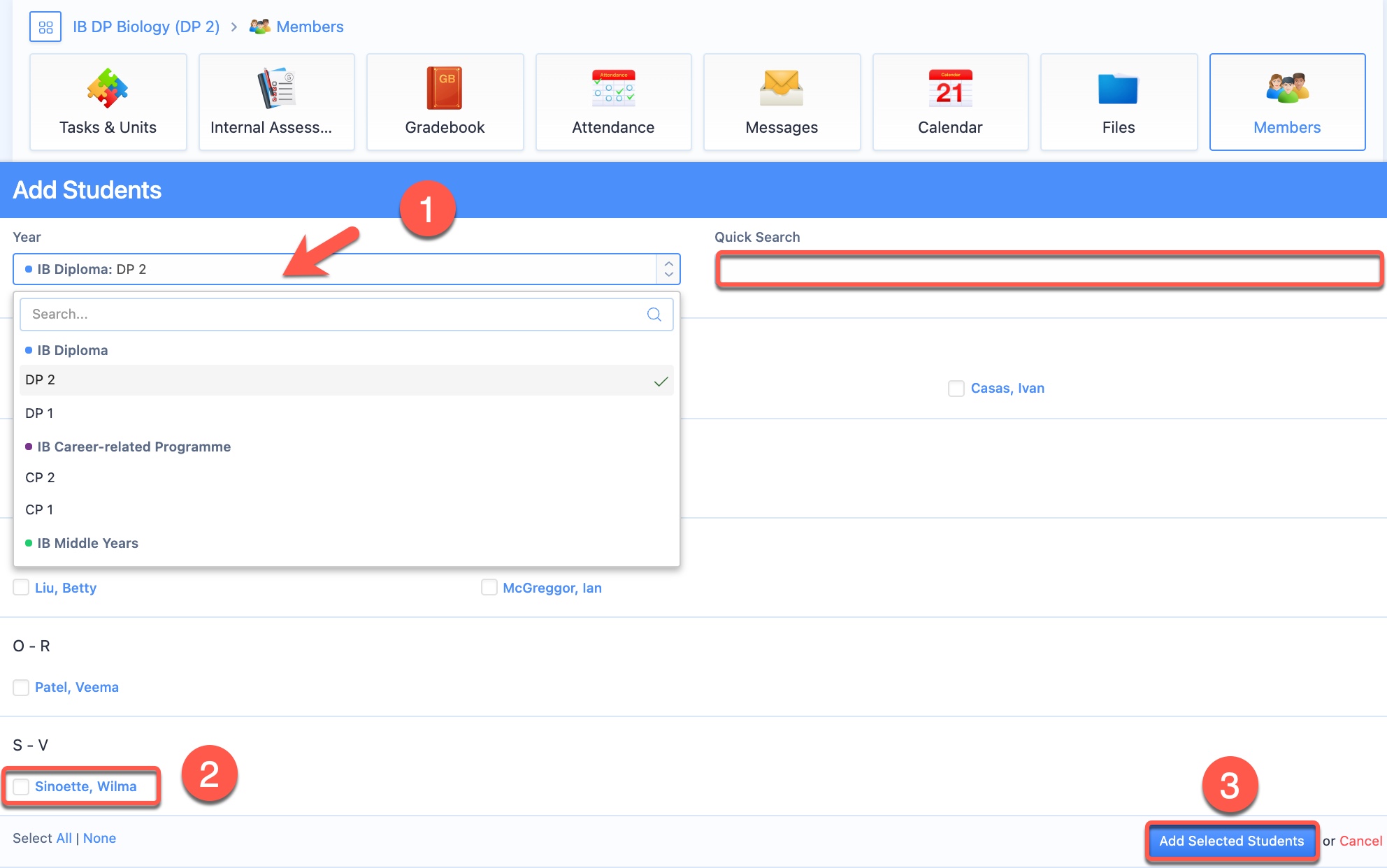
You can add students by checking their names on the list, and clicking Add Selected Students at the end of the list.
1. Students are listed by curriculum programme & grade level. You can filter the students by grade level using the Year menu. Within the grade level, you can search for a student through the Quick Search field.
2. Once you have entered a student’s name, you will be able to select him/her from the list. Note: If you do not find a student in the system, please contact your coordinator to ensure that the student's account has been created.
3. To save changes, click Add Selected Students.
sourced from this website. Adding Students to Classes Individually