
Note: It's only possible for a Student to be a member of 1 Year Group at a time. Their connection to a year group is a key data point that ties them to their records on ManageBac.
Moving Students between Year Group Sections
If you need to move a student between year group sections (ie Grade 12 A to Grade 12 B), you will need to
- Navigate to Year Group A > Members tab > Remove the student, and then
- Navigate to Year Group B > Members tab > Add the student
Moving Students between Year Groups of different Grade Levels or Programmes
In some instances, you may need to move a student to a different year group. These cases could include:
- A student who is repeating a year
- A student who was added to a year group incorrectly
- A student who has switched academic programmes
Note: If you wish to move an entire group of students as they graduate or advance to a new grade, please refer to Step 8 of our tutorial on Transitioning to a New Academic Year here.
Admin users can move students from one year group to another via Settings > School Directory > Memberships.
Via Settings > School Directory > Memberships
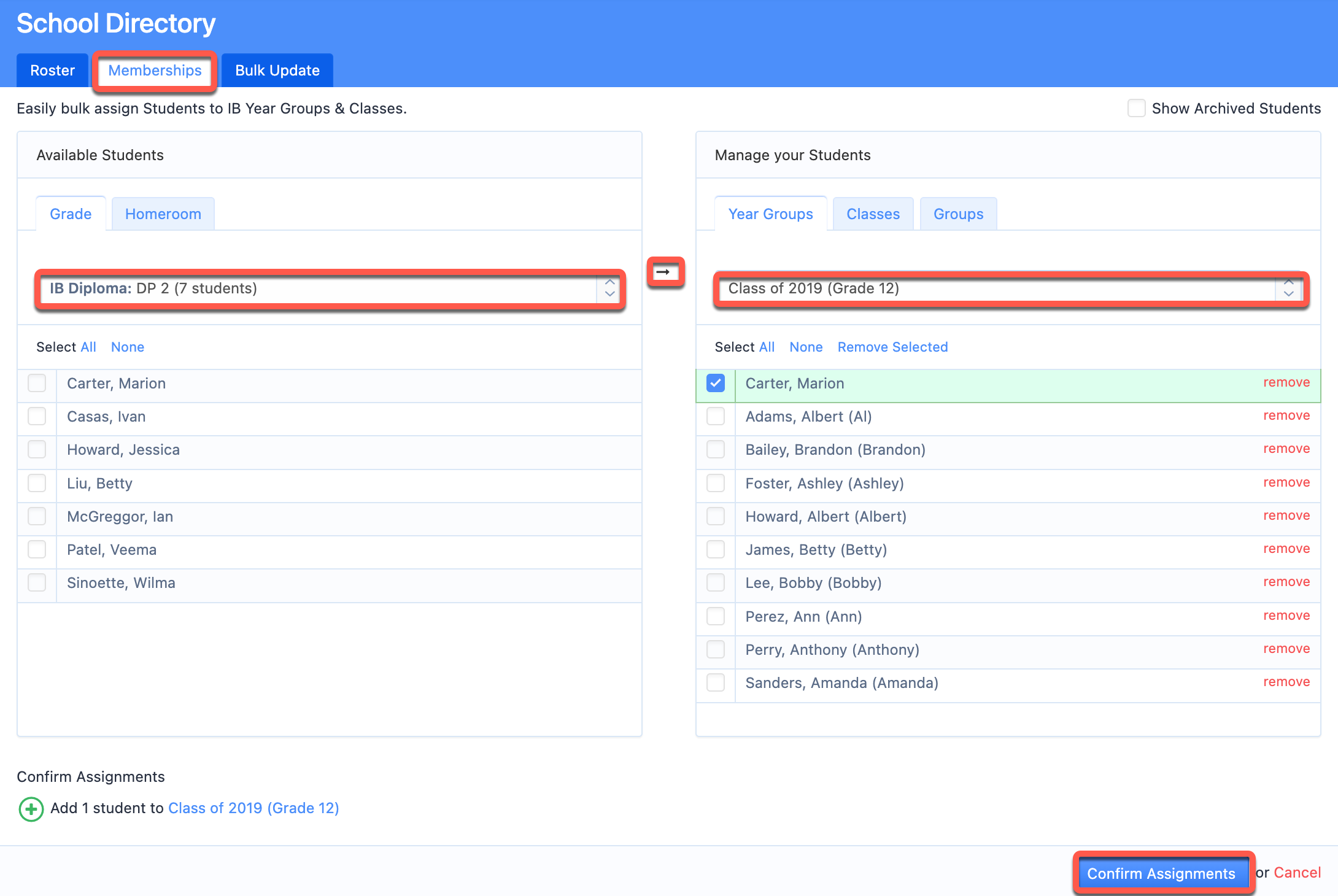
You can reassign the student via Settings > School Directory > Memberships.
To remove a student:
- Use the dropdown under Year Groups to locate the student's original year group.
- Check the box next to the left or "remove" on the right of their name.
- Click the "Confirm Assignments" blue button at the bottom right-hand side.
To add a student:
- Firstly, Select the student's new year group under the Year Groups dropdown - on the right-hand side.
- Then, Under Available Students - on the left-hand side,
- Select "Not in any group".
- Check the box next to the left of their name.
- Click the arrow on the centre of the page,
- Click the "Confirm Assignments" blue button at the bottom right-hand side .
Note: This method can also be used to add or remove students from classes and activity groups
sourced from this website. Moving Students between Year Group Sections